
Connect Your Apps
Integrating Google Play
Create a Google Cloud service account, grant it access in Play Console, and connect your Android apps
Prerequisites
- Access to a Google Cloud project where you can create a service account
- Permission to invite users in Google Play Console
- Your app’s package name, in reverse-DNS form
Create the service account
- 01In Google Cloud Console, go to IAM & Admin → Service Accounts and create a service account. It needs no Cloud-level role.
- 02Open it, go to the Keys tab, and choose Add key → Create new key → JSON.
- 03Save the JSON file Google downloads. As with Apple, this is issued once.
- 04Copy the service account email — it looks like
name@project-id.iam.gserviceaccount.com.
Grant it access in Play Console
- 01In Google Play Console, go to Users & permissions → Invite new users.
- 02Paste the service account email.
- 03Grant access to the apps you want ReviewDesk to manage.
- 04Under account permissions, grant at least View app information and download bulk reports. To post replies, also grant Reply to reviews.
- 05Click Invite user. The grant takes effect immediately — there is no email confirmation step for service accounts.
Connect in ReviewDesk
- 01Go to Apps and click Connect app.
- 02Give the connection an account name — your label for this Play Console organization.
- 03Choose the Android · Play platform.
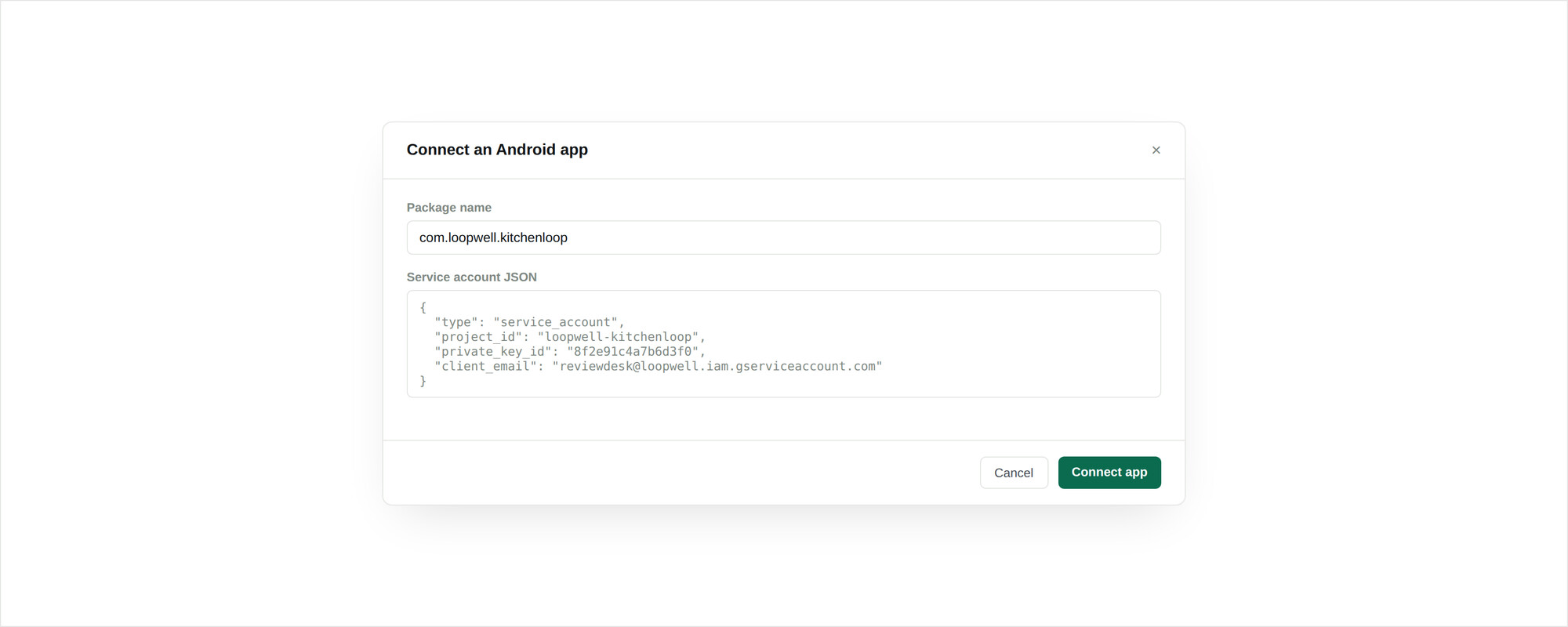
- 04Paste the entire JSON file into Service account JSON.
- 05Expand Add manually, then enter a display name and the package name, for example
com.example.app. - 06Save. Repeat for each additional app in the same account — the credentials are reused automatically.
Credential reference
| Field | Format | Notes |
|---|---|---|
| Service account JSON | The complete JSON file, including client_email and private_key | Pasted as text. Stored encrypted; never shown again. |
| Package name | Reverse-DNS, 3–255 characters, e.g. com.example.app | In Play Console under your app, or after ?id= in the store URL. |
Verification
A connected app shows an active status and picks up a last polled timestamp within a few minutes. Use Test connection from the app menu to check credentials on demand.
Troubleshooting
The JSON was rejected
ReviewDesk checks the paste is valid JSON containing both client_email and private_key. A truncated copy, or the OAuth client JSON rather than the service account key JSON, will both fail this check.
Credentials verify but no reviews arrive
Usually the service account was invited to Play Console but not granted access to that specific app, or the package name has a typo. Confirm both, then run Test connection. Remember an app with no reviews in the last 7 days will legitimately show none.
Replies fail to post with a permission error
The service account is missing Reply to reviews in Play Console. Add it under Users & permissions; the change applies immediately and failed replies can be retried.
My reply was truncated
Google Play caps replies at 350 characters. ReviewDesk sizes drafts to fit and shows a live counter, but a hand-written reply can still exceed it. See Platform differences.