
Connect Your Apps
Integrating App Store Connect
Create a Customer Support API key in App Store Connect and connect every iOS app in the account at once
Prerequisites
- An Admin account in App Store Connect — only Admins can generate Team Keys
- The ability to download a file and keep it somewhere safe for a moment
Create the API key
- 01Sign in to App Store Connect as an Admin.
- 02Go to Users and Access → Integrations → App Store Connect API → Team Keys.
- 03Click Generate API Key, name it something recognisable such as "ReviewDesk", and select the Customer Support role.
- 04Click Download API Key and save the
AuthKey_XXXXXXXXXX.p8file. - 05Copy the Key ID from the key's row in the table.
- 06Copy the Issuer ID from the top of the same page.
Connect in ReviewDesk
- 01Go to Apps and click Connect app.
- 02Give the connection an account name — your label for this App Store Connect team.
- 03Choose the iOS · App Store platform.
- 04Drag the
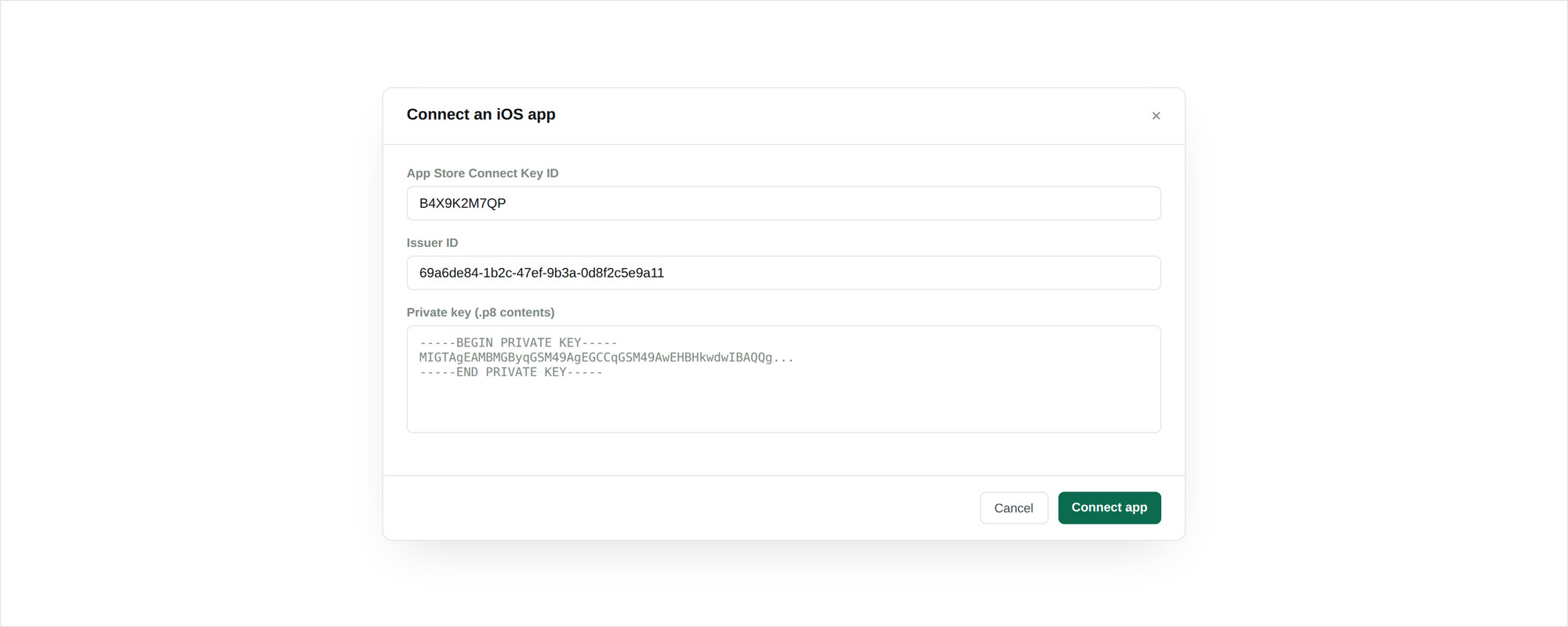
AuthKey_XXXXXXXXXX.p8file onto the drop zone, or click to browse for it. - 05Paste the Key ID and the Issuer ID.
- 06Click Verify & discover apps.
ReviewDesk validates the key against Apple and lists every app in the account. Tick the ones you want and connect them in a single batch. Each app reports success or failure individually, and a Retry failed button re-attempts only the ones that did not take.
Credential reference
| Field | Format | Where to find it |
|---|---|---|
| Private key | The .p8 file, including the BEGIN/END PRIVATE KEY lines | Downloaded once when the key is generated |
| Key ID | 10 characters, uppercase letters and digits | Next to the key in the Team Keys table |
| Issuer ID | A UUID | Top of the Integrations → App Store Connect API page. Shared by every key in the account. |
Verification
A connected app shows an active status on the Apps screen and picks up a last polled timestamp within a few minutes. You can force a check at any time with Test connection from the app's menu.
Troubleshooting
The file was rejected when I attached it
The upload accepts a .p8 file up to 64 KB whose contents carry the -----BEGIN PRIVATE KEY----- and matching END lines. A renamed .txt, an empty file, or a copy that lost its armor lines will all be refused. Re-download from Apple if in doubt.
Verification fails with an authentication error
Nearly always a mismatched Key ID or Issuer ID. The Key ID belongs to that one key; the Issuer ID is shared across the whole account. Confirm you copied each from the right place, and that the key has not been revoked in App Store Connect.
Discovery returns no apps
The key authenticated but the account has no apps visible to it. Check you generated the key in the correct App Store Connect team — Admins with access to several teams can easily create it in the wrong one.
An app stopped syncing and raised a credential alert
The key was revoked or expired. Generate a new one, then use Edit on any app in the account to paste the replacement — see Managing apps. Credential failures also raise an alert.